Using FT232RNL with Sigrok/Pulseview on Windows
Features at a Glance
https://www.waveshare.com/wiki/USB-TO-TTL-FT232
- Onboard FT232RNL chip - Fast communication, stable and reliable, better compatibility
- Castellated holes design - Compact size, easy to integrate into devices by soldering
- UART communication - Baudrate: 300bps~3Mbps
- Protection features - Onboard self-recovery fuse and ESD diode for over-current/over-voltage protection
- Status indicators - TXD and RXD indicators for monitoring transceiver status
- Voltage switching - Reserved VCC switching pads on the back (default 3.3V TTL, switchable to 5V)
- All pins accessible - Adapting all function pins of the chip for secondary development and integration
- USB Type-C port - Smooth plug & pull, solid and reliable
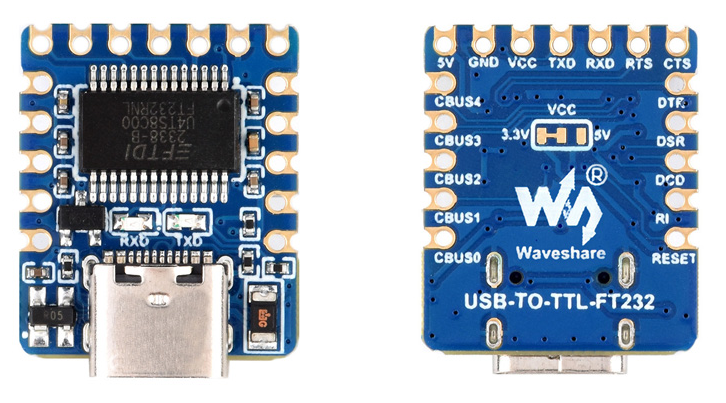
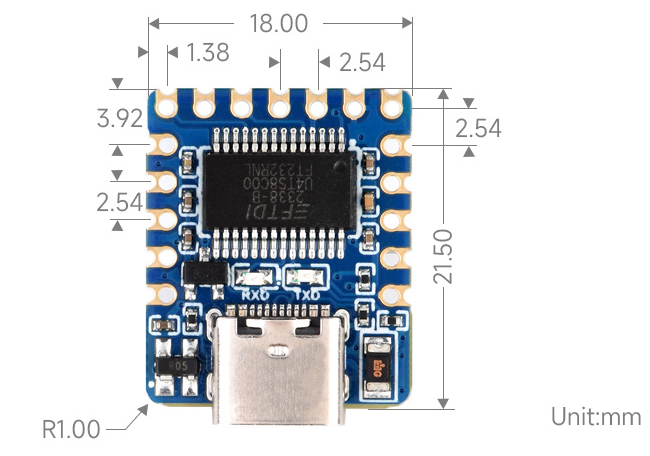
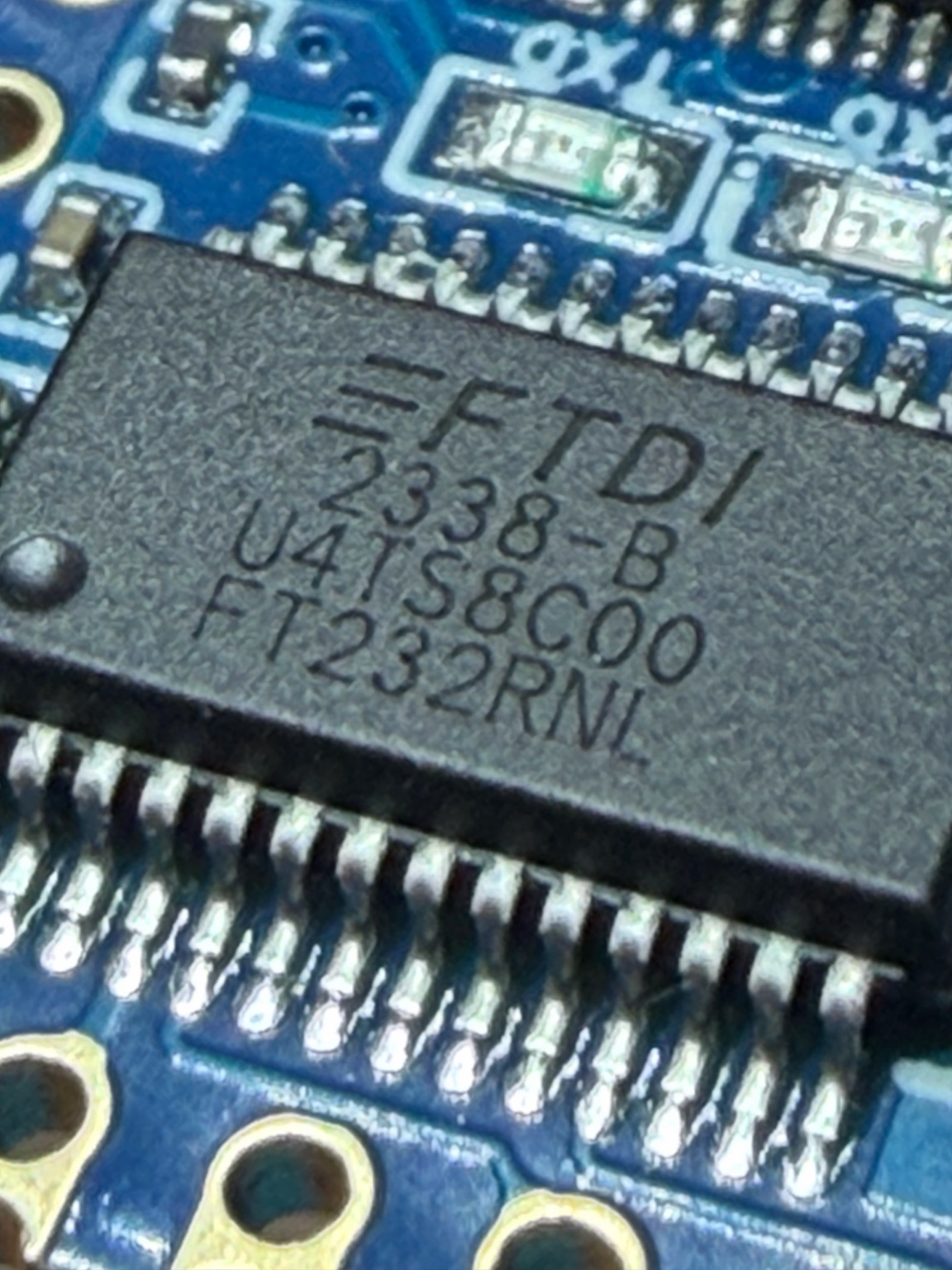
IC chip closeup, taken with iPhone macro lens
The Challenge: Driver Issues on Windows
Getting FTDI chips working as logic analyzers with sigrok/Pulseview on Windows requires the correct driver setup. The default Windows Update driver often doesn’t work properly with libsigrok.
The Problem
When trying to use the FT232RNL with Pulseview, you might encounter this error:
sr: ftdi-la: Failed to get the FTDI strings: -4
This indicates that Pulseview can’t properly communicate with the FTDI device using the current driver.
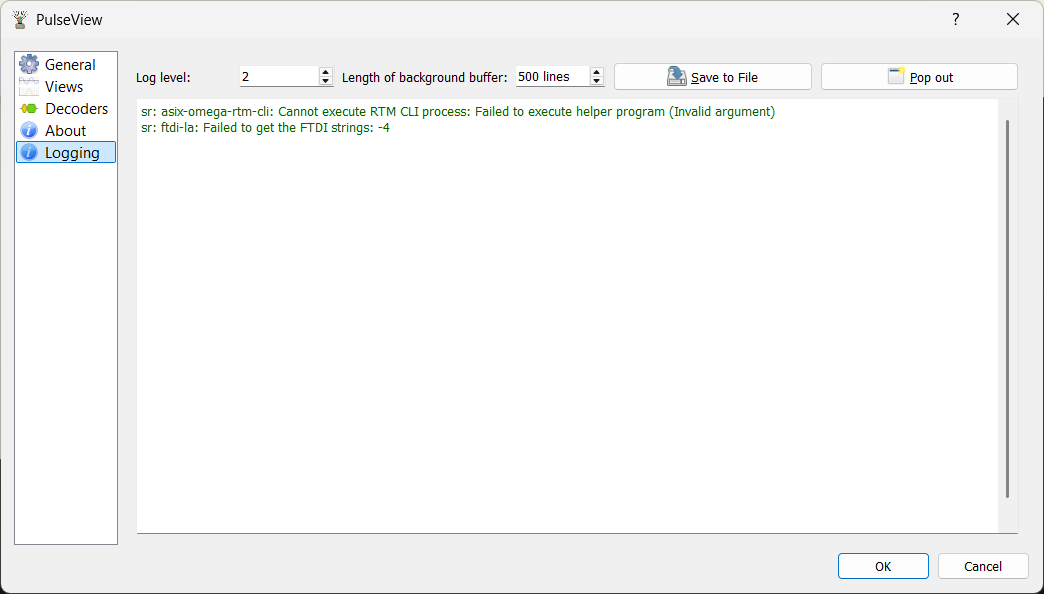
The Solution: Installing WinUSB Driver
According to the Sigrok Windows Driver Documentation, the proper approach is to install the WinUSB driver instead of the default FTDI driver.
Steps to fix:
-
Open Zadig - Zadig is included with Pulseview, no separate installation needed. You can find it in your Pulseview installation directory or download it from the Sigrok Windows setup page
-
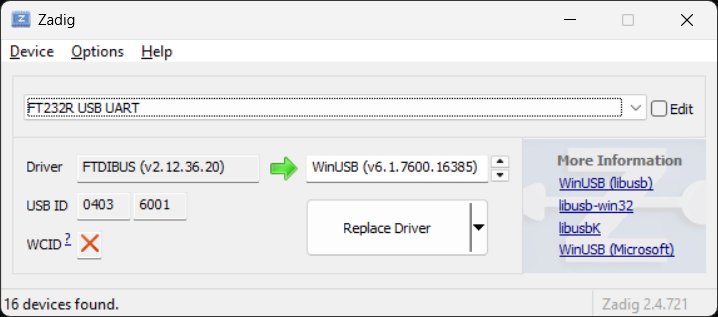
Install WinUSB driver - Run Zadig and select the FTDI device, then install the WinUSB driver
-
Reconnect device - Disconnect and reconnect the FT232RNL board
-
Restart Pulseview - Close and reopen Pulseview
Updating the Driver
🔔 Each FT232 device operates independently, so its possible to have multiple FTDI devices connected, each requiring its own driver configuration.
Initially, Zadig might show FTDIBUS (vx.xx) as the currently installed driver for the FTDI device.
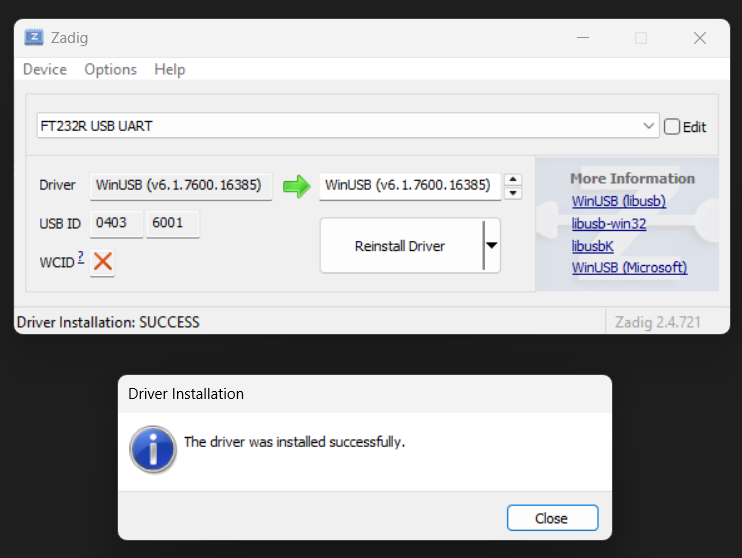
After replacing the original FTDIBUS driver with WinUSB using Zadig, Zadig should show that WinUSB is now the installed driver for the FTDI device.
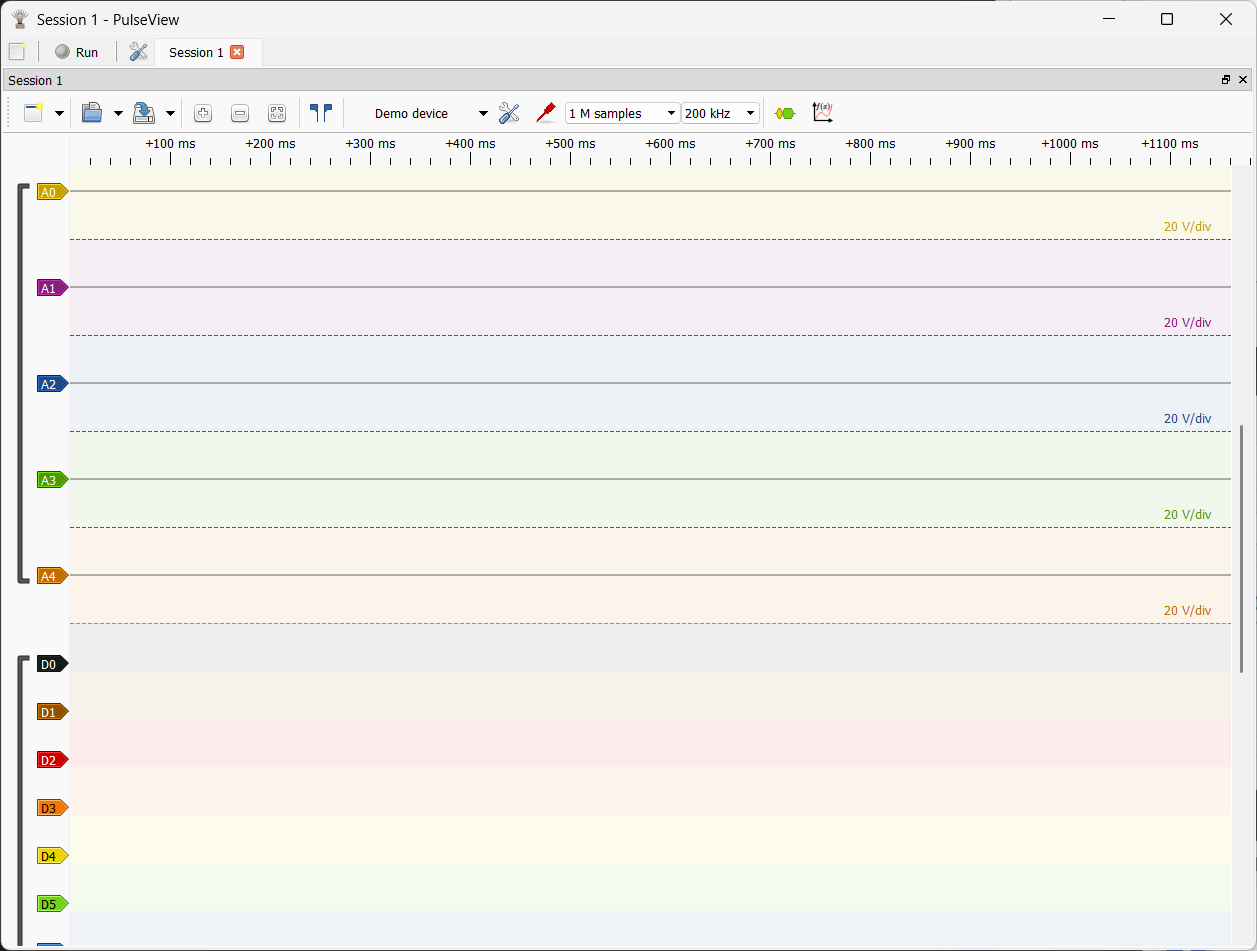
FT232RNL Successfully Recognized as Logic Analyzer device
🔔 Only one application can use the FTDI device at a time. Make sure to close Pulseview if using sigrok-cli or vice versa.
After updating the driver to WinUSB and restarting Pulseview, the FTDI device is now recognized properly and ready for logic analysis.
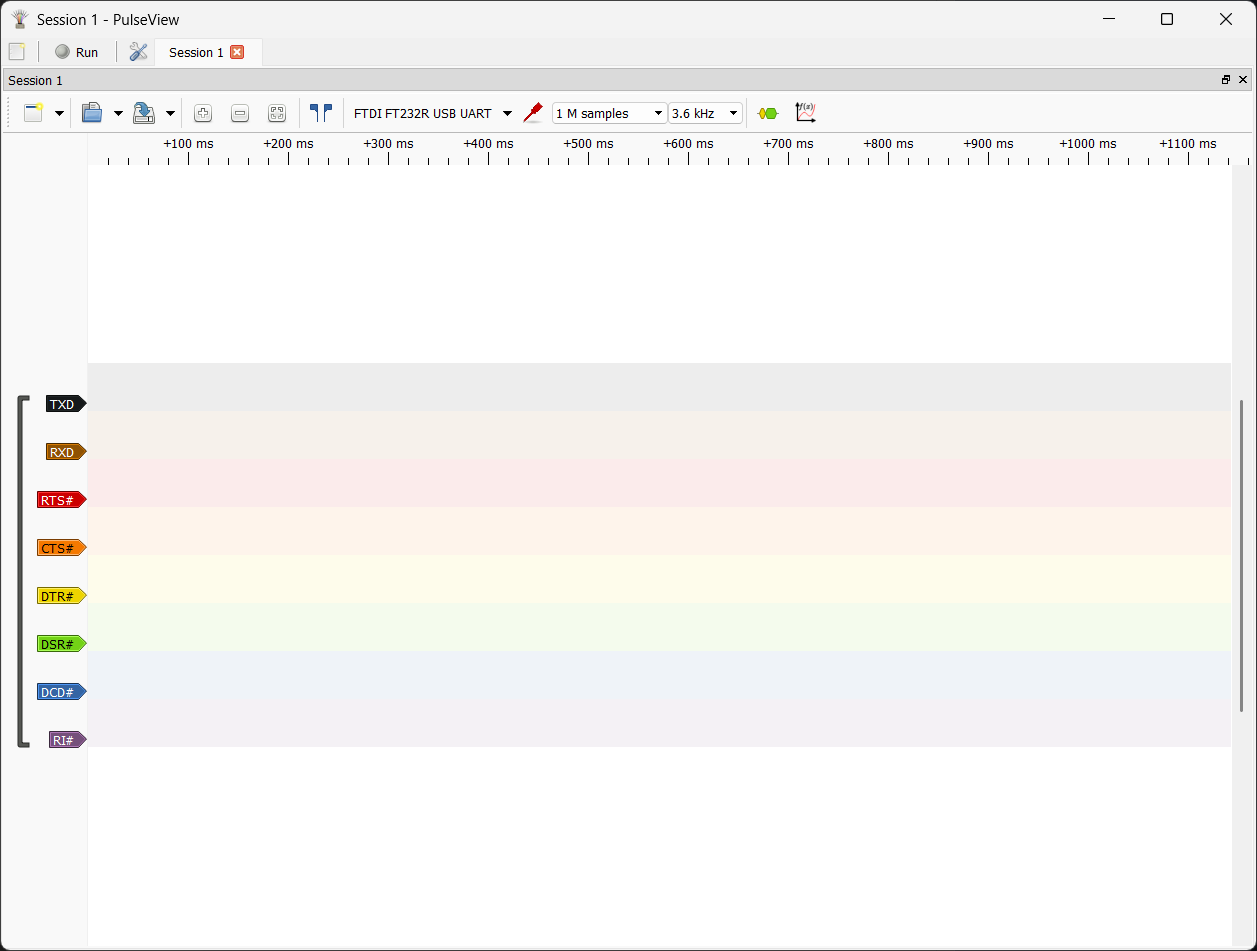
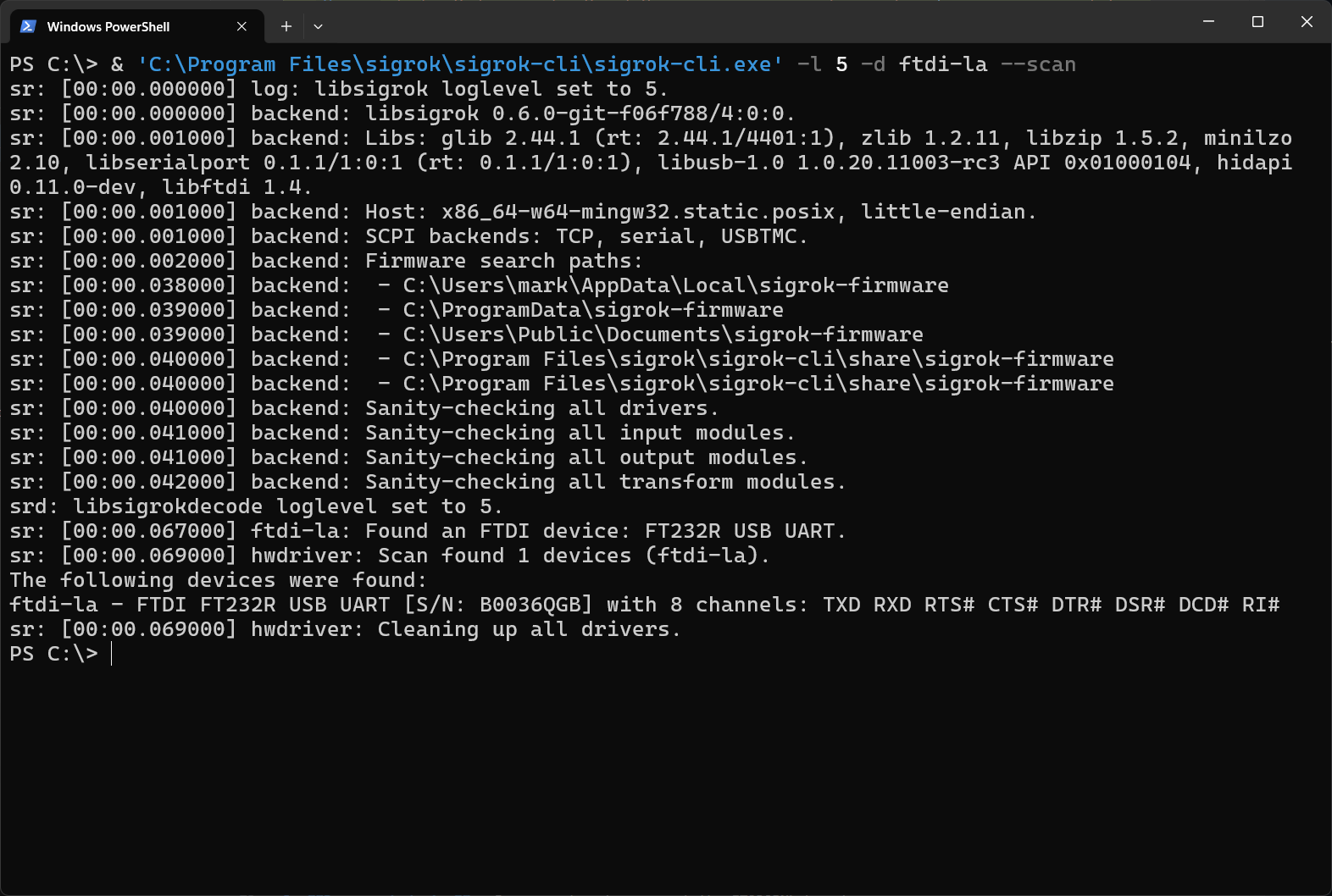
Also verified via sigrok-cli, specifying driver ftdi-la.
& 'C:\Program Files\sigrok\sigrok-cli\sigrok-cli.exe' --driver ftdi-la --scan
or for more verbose logging
& 'C:\Program Files\sigrok\sigrok-cli\sigrok-cli.exe' --driver ftdi-la --scan --loglevel 5
For more information about using FTDI chips as logic analyzers, check out the official Sigrok FTDI-LA documentation.