My First Post
Hello, world! This is my first post on my new blog.
Setting Up My Blog
How I built this blog:
While I’d like to say that I built this blog from scratch, the truth is that… I didnt.
I just forked it from kratzert kratzert.github.io then I just changed some files and added my own content.
Thanks, Kratzert! :)
Testing codeblock
Here, I’m just testing the code block functionality since I plan to use this blog to share code snippets and examples.
PowerShell script
using standard markdown formatting for PowerShell code blocks, with a header include for the copy button.
Write-Host "Hello, World!"

$isAdmin = [bool]([Security.Principal.WindowsPrincipal][Security.Principal.WindowsIdentity]::GetCurrent()).IsInRole([Security.Principal.WindowsBuiltInRole]::Administrator)
if ($isAdmin) {
    Write-Host "Running as Administrator"
} else {
    Write-Host "Not running as Administrator"
}
using kramdown formatting for PowerShell code blocks.
Write-Host "Hello, World!"
$isAdmin = [bool]([Security.Principal.WindowsPrincipal][Security.Principal.WindowsIdentity]::GetCurrent()).IsInRole([Security.Principal.WindowsBuiltInRole]::Administrator)
if ($isAdmin) {
    Write-Host "Running as Administrator"
} else {
    Write-Host "Not running as Administrator"
}
testing kramdown formatting for PowerShell code blocks using four spaces or 1 tab, instead of backticks or tildes.
Write-Host "Hello, World!"
$isAdmin = [bool]([Security.Principal.WindowsPrincipal][Security.Principal.WindowsIdentity]::GetCurrent()).IsInRole([Security.Principal.WindowsBuiltInRole]::Administrator)
if ($isAdmin) {
    Write-Host "Running as Administrator"
} else {
    Write-Host "Not running as Administrator"
}
Bash script
echo "Hello, World!"
Python script
print("Hello, World!")
C#
using System;
class Program
{
    static void Main()
    {
        Console.WriteLine("Hello, World!");
    }
}
Images
Testing how to add images to my blog posts.
Using markdown formatting for images:
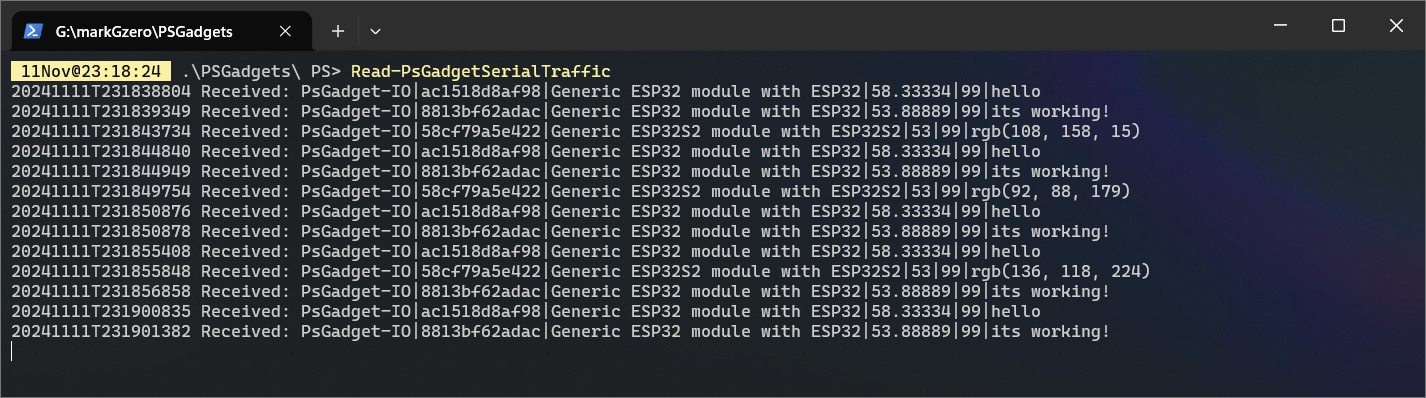

using html formatting for images:
<div class="fig figcenter fighighlight">
  <div class="figcaption"><br> Example of PSGadget serial stream in a PowerShell console<br>
  <img src="/images/psgadgets/psgadget_serial.png" alt="PSGadget Serial example" />
  </div>
</div>
Example of PSGadget serial stream in a PowerShell console
Adding code block copy button
For convenience, its important for me to add a copy button to my code blocks.
This is my first time working with Jekyll and there are more files that I expected.
Found this guide:
https://www.aleksandrhovhannisyan.com/blog/jekyll-copy-to-clipboard/
which was really helpful. I tried to follow along but I had to make some adjustments and still couldnt get it to work. The button was showing, but it was not copying the code to the clipboard.
Eventually, I found the solution in the issue comments:
https://github.com/AleksandrHovhannisyan/aleksandrhovhannisyan.com/issues/35#issuecomment-641247503
Ah, I would advise against putting the script in your include file (this may be part of the problem, but I’m not sure). This means your block will get included on the page as many times as you have code blocks (e.g., if you have 4 code blocks, you’ll have 4 duplicate scripts). What you really want is to add the script to your layout file for blog posts (e.g., _layouts/post.html) at the very bottom so that each blog post gets one copy of that script. Let me know if that makes sense!
Essentially, I was adding the script to the top of the _layouts/posts.html file, when I should have been adding it to the bottom.
After I made that change, it worked!
Next, I just need to figure out how to style the button. But that’s for another day.
Summary
That’s it for now. Just a quick hello and a test of the blogging platform.